
Security
Protect your account
Use the security controls available in your COnnect account to limit accidental exposure and review access.
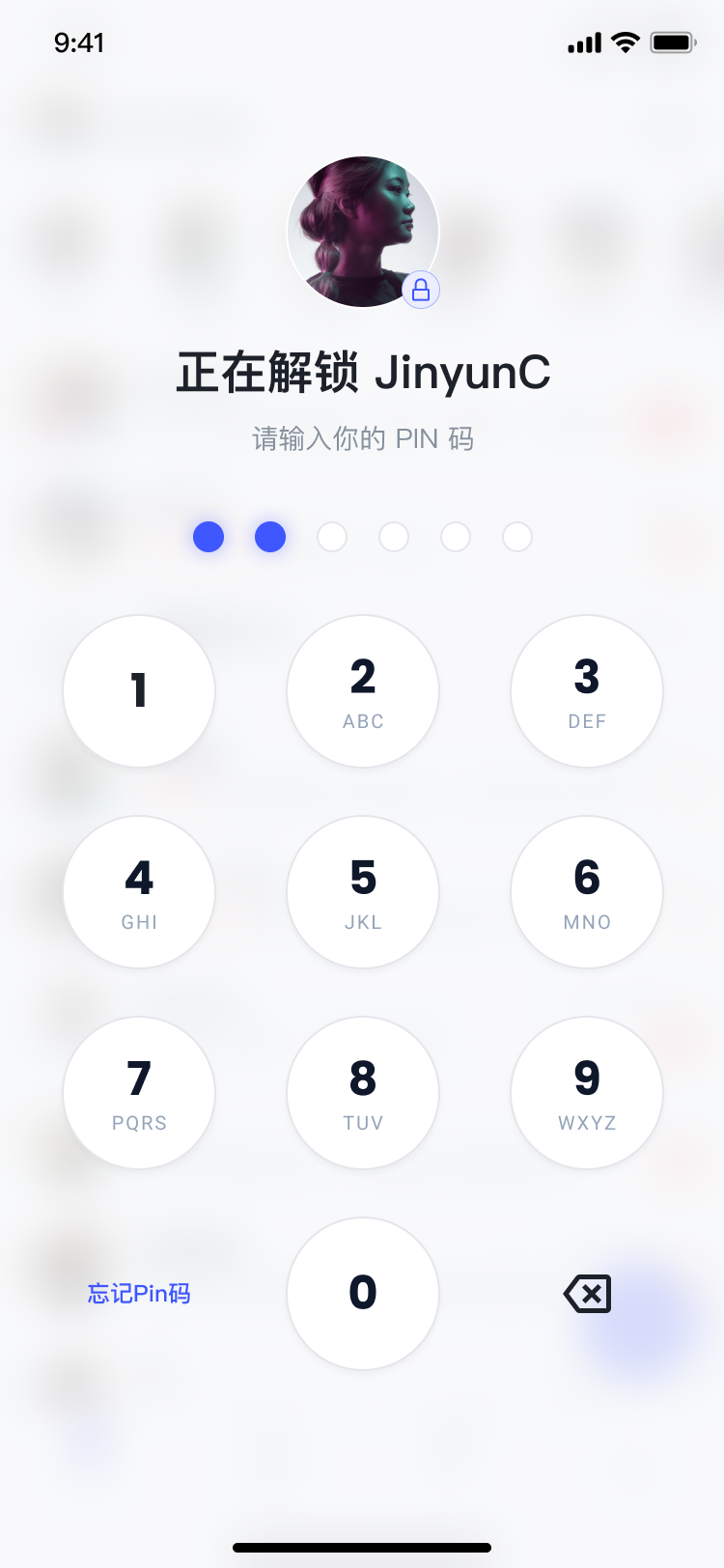
Set up PIN protection
- Open Settings and choose the account or security area.
- Choose the PIN option and follow the prompts to create or update your PIN.
- Store the PIN safely. Do not send it in a chat or reuse a PIN that others can guess.
A PIN protects access on the device
PIN protection does not replace your account password or erase information held by other people or external services.
Review account access
Open the device or login records available in Settings. Review the device name, recent activity, and any location or IP details shown for your account. If an entry is unfamiliar, change the account credential, remove the device when the control is available, and contact support.
When access looks risky
- Stop using the suspicious session and do not approve unexpected verification requests.
- Change the affected account credential from a trusted device.
- Remove the untrusted device if the account provides that action.
- Contact support with the account name and approximate time. Never include a password or PIN.
For a lost device, continue with Respond to device risk.